How to Use AI at Work: Finish One Safe Task Today
To start using AI at work, choose a small task with source notes you can check. Ask an approved AI chat for a draft, compare every line with those notes, then keep only what holds up. In this beginner lesson, we turn fictional onboarding notes into a checklist using Claude. Its first answer looks useful but moves two assigned tasks into the wrong section. The review turns that answer into a checked result for this exercise.
Level 1: Beginner · Practice time: about 15 minutes · Tested 25 September 2026 in Claude web chat with fictional data. The method also works in another approved chat tool. Buttons and model names may change.
Choose a first task you can check
Start with material you already understand and an output you can easily revise. A short checklist is a better first experiment than giving an assistant access to your inbox and hoping for a quiet afternoon.
| Try now with safe sample data | Ask your workplace first | Leave for later |
|---|---|---|
| Turn five harmless notes into a checklist. | Summarize a real client document or internal meeting. | Let AI send messages or approve a decision on your behalf. |
| Reword a public description in plain English. | Upload a file containing personal or confidential details. | Use an unchecked answer for a legal, medical or financial decision. |
“Safe” here means the example uses fictional information, the task is easy to reverse, and a person checks the result. It does not mean every AI account is approved for company information. Use your employer’s approved tool and data rules. If you do not have one, practice with the fictional notes below rather than real work records.
Follow along: rough notes to a checked checklist
1. Read the source notes
Our example company, Harbor Services, and its coordinator, Maya, are fictional. These are the complete notes for the exercise:
Four new colleagues start on Monday. HR creates their accounts. IT prepares laptops. The handbook link in the welcome email is outdated. Maya will lead a 20-minute orientation call. No owner or deadline has been assigned to the handbook update. No customer data appears in these notes.
Before opening an AI tool, underline the three assignments: HR handles accounts, IT handles laptops, and Maya leads the call. Circle the missing owner and deadline for the handbook update. The notes do not say that any task is finished.
2. Ask for a draft in an approved chat
We tested this in Claude’s web chat. If this is your first time, open that address and sign in or create an account that your workplace permits you to use. Choose a new Chat conversation. Paste the request below into the message box, then press the send arrow. This text-only exercise works on Claude’s free plan; it does not require file uploads, connected apps or Cowork. Anthropic’s getting-started guide documents web access and the basic message box.
This is fictional practice data. Turn the notes below into a preparation checklist for Maya. Use only the notes. Separate confirmed actions from suggested checks. For any missing owner or deadline, write “not specified”. Do not invent company policy, dates or commitments. Keep the result under 120 words.
Harbor Services practice notes: Four new colleagues start on Monday. HR creates their accounts. IT prepares laptops. The handbook link in the welcome email is outdated. Maya will lead a 20-minute orientation call. No owner or deadline has been assigned to the handbook update. No customer data appears in these notes.
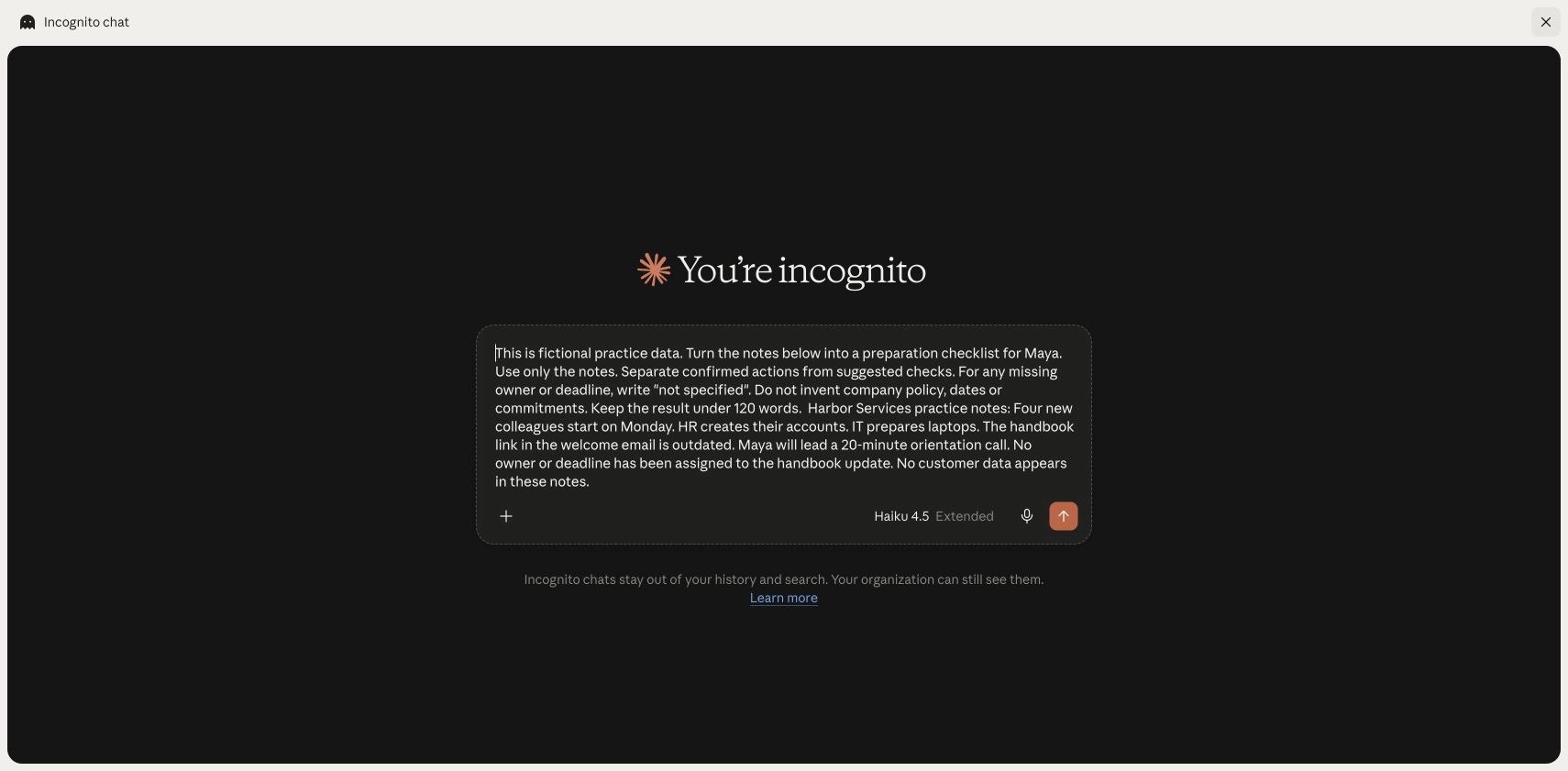
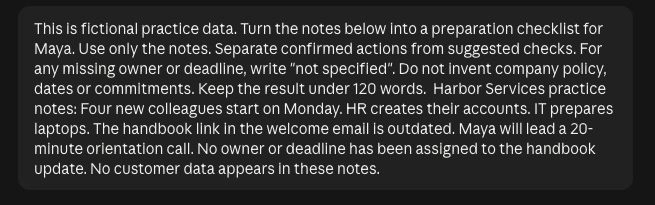
Our screenshot shows an incognito chat. That mode is optional; it does not replace your workplace’s data policy. Anthropic says organization retention rules can still apply to incognito chats in Team and Enterprise accounts. Check the current account guidance before treating a privacy setting as permission to upload work data.
3. Compare the first answer with the notes
Claude’s first response named Maya’s call as a confirmed action, but placed HR’s account work and IT’s laptop work under “Suggested Checks.” It also suggested assigning the handbook owner and deadline. Those are reasonable things to check; they are not the same as the assignments recorded in the notes. Our first prompt said “confirmed actions,” which could mean either assigned work or completed work. The notes confirm assignments; they do not confirm completion. Suggestions still need their own label.
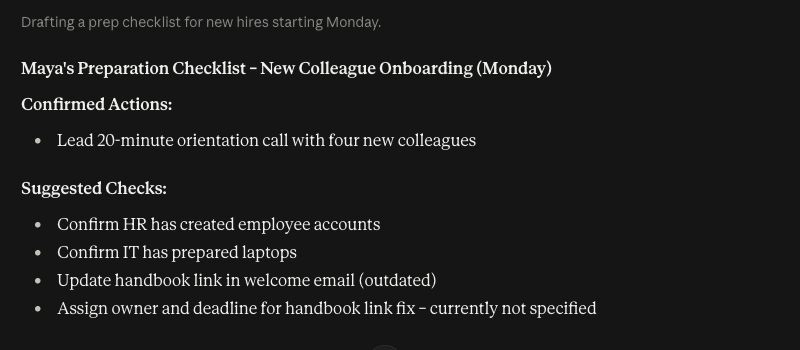
| Source note | First answer | Your check |
|---|---|---|
| HR creates accounts. | “Confirm HR has created employee accounts” appears as a suggestion. | HR has the assignment. Completion is unknown. |
| IT prepares laptops. | “Confirm IT has prepared laptops” appears as a suggestion. | IT has the assignment. Completion is unknown. |
| Handbook owner and deadline are not assigned. | Assigning them appears as a suggestion. | Keep the gap visible. Do not invent an owner or date. |
The assistant has made the list neater, but it has also changed the status of two tasks. A blank owner field has never filled itself by being put in a prettier table.
4. Give one precise correction
Reply in the same chat. Point to the source, name the mistake, and state what the revised answer must preserve:
Revise the checklist against the original notes. HR creating accounts, IT preparing laptops, and Maya leading the call are assigned work in the notes; your answer moved the first two into suggested checks. List these three as confirmed assignments, without implying they are finished. Put the outdated handbook link under unresolved work. Its owner and deadline are not specified. Put any extra check in a separate section labelled “suggested.” Keep the answer concise.
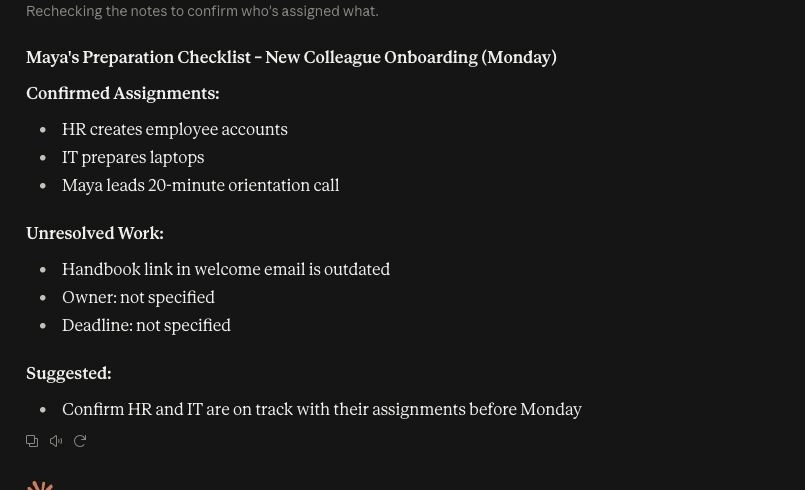
In our second run, Claude put HR, IT and Maya under confirmed assignments. It separated the outdated handbook link into unresolved work and left the owner and deadline as “not specified.” It kept a proposed check in a section labelled “Suggested.”
5. Keep only the checked result
Here is the finished result from our test, in text you can copy and inspect:
Confirmed assignments
- HR creates employee accounts.
- IT prepares laptops.
- Maya leads the 20-minute orientation call.
Unresolved work
- The handbook link in the welcome email is outdated. Owner: not specified. Deadline: not specified.
Suggested check
- Confirm HR and IT are on track with their assignments before Monday.
Before moving a result into a normal document or task list, check each line against its source:
- Assigned: Who is responsible, according to the notes? Has the assistant confused an assignment with a completed task?
- Unresolved: Which owner, deadline or fact is missing? Leave it missing until a person supplies it.
- Suggested: Which useful next steps did the assistant add? Label them as proposals until someone approves them.
For Maya, the usable result is a list of three assignments, one unresolved handbook issue, and one optional check. The AI has organized the work; it has not assigned the missing owner. You can copy the reviewed text into your usual task document and ask the right person to resolve that gap.
Try it on one small task
Write four or five harmless bullet notes about a routine task. Use real work notes only in an employer-approved AI tool under its data rules; otherwise reuse the fictional Harbor Services notes. Ask for three sections: assigned work, unresolved points, and suggestions. Compare every line with your notes. If the assistant changes an assignment, invents a deadline or treats a suggestion as a decision, correct that line in the same chat.
Pass test: You can point to a source note for every claimed fact; missing information remains marked as missing; and every extra action is labelled as a suggestion. If you cannot do that, keep the output as a draft.
What if the answer still looks wrong?
Show the exact source sentence and ask for one correction. If the task depends on information you cannot verify, stop there and ask a person. A longer prompt will not create a missing fact. The next lesson in this series will show how to write a clearer work request; for now, a source check matters more than clever wording.
Once a simple chat task works, you can explore bigger processes. Our AI workflow versus AI agent guide explains the difference between a repeatable process and an assistant that can act across tools. Start with the checked checklist.